# How To Add Contact Form 7 Form In Elementor Without Any Plugin
Here are step-by-step instructions to add a Contact Form 7 form to a page using Elementor. You don’t need any additional plugins to do this.
Author: Abhijit Rawool
Source: https://abhijitrawool.com/how-to-add-contact-form-7-form-in-elementor/
Published: 2020-06-15T04:54:03Z
Updated: 2020-09-28T05:55:11Z
Want to add a form created with Contact Form 7 in Elementor without using any additional plugins?
**Here are the steps to add a Contact Form 7 form in Elementor:**
1. **Create the form with Contact Form 7 that you want to place on the page created with Elementor.**
2. **Copy the shortcode of the Contact Form 7 form.**
3. **Edit the page with Elementor on which you want to place the form created with Contact Form 7.**
4. **Drag-and-drop the Shortcode widget on the page.**
5. **Paste the Contact Form 7 shortcode in the Shortcode widget settings.**
6. **Save your changes.**
Let’s take a detailed look at each of these steps now.
## STEP 1: Create The Contact Form 7 Form
First, create the form using the Contact Form 7 plugin that you want to place on a page using Elementor.
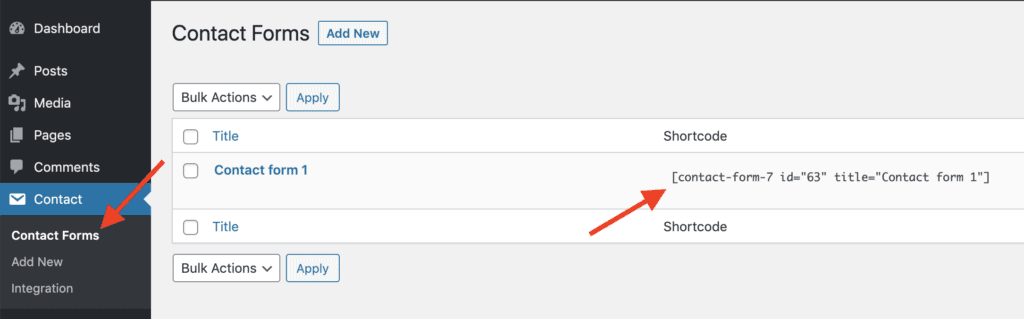
Once the form is created, go to Contact > Contact Forms page and copy the shortcode of that form.
[
](/wp-content/uploads/2020/06/copy-contact-form-7-form-shortcode.png)
## STEP 2: Add The Form To The Page Using Elementor
Once you have copied the shortcode of the form, edit the page with Elementor on which you want to place this form.
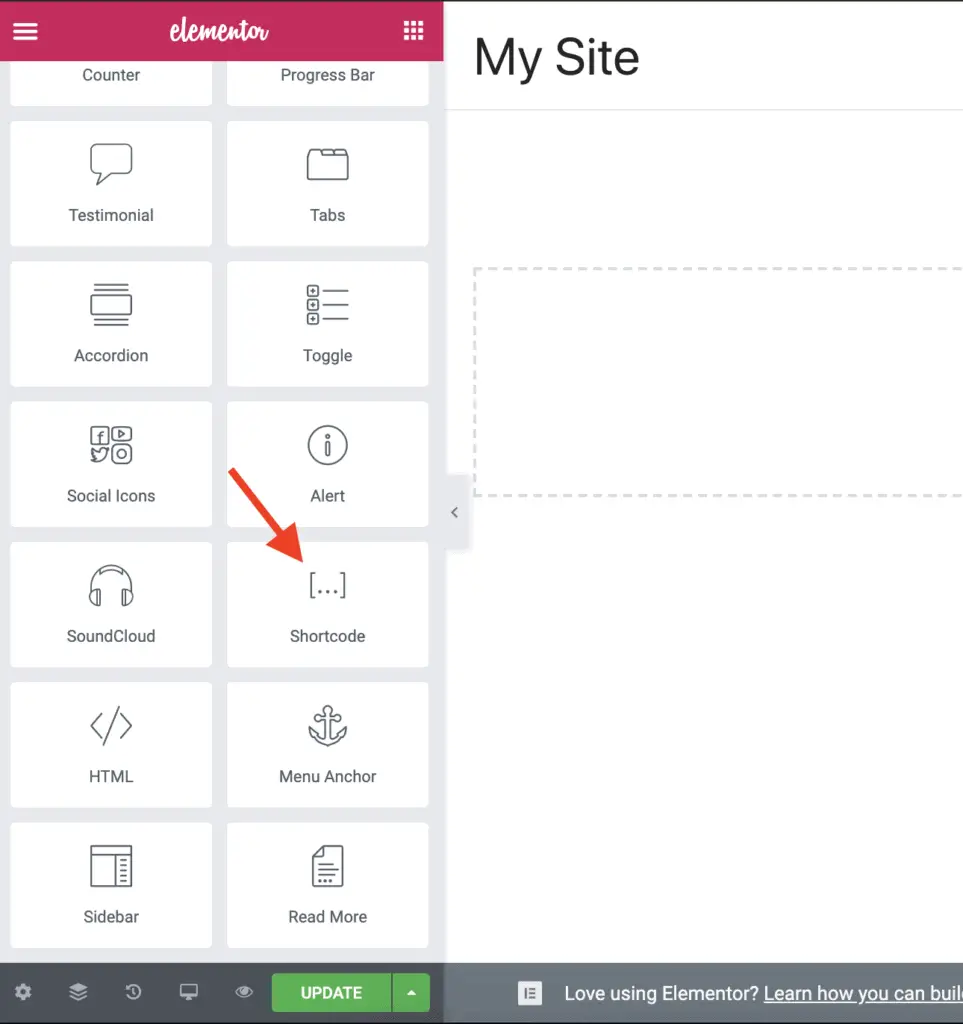
Once Elementor is active, scroll down and drag-and-drop the Shortcode widget on the page.
[
](/wp-content/uploads/2020/06/drag-and-drop-shortcode-widget.png)
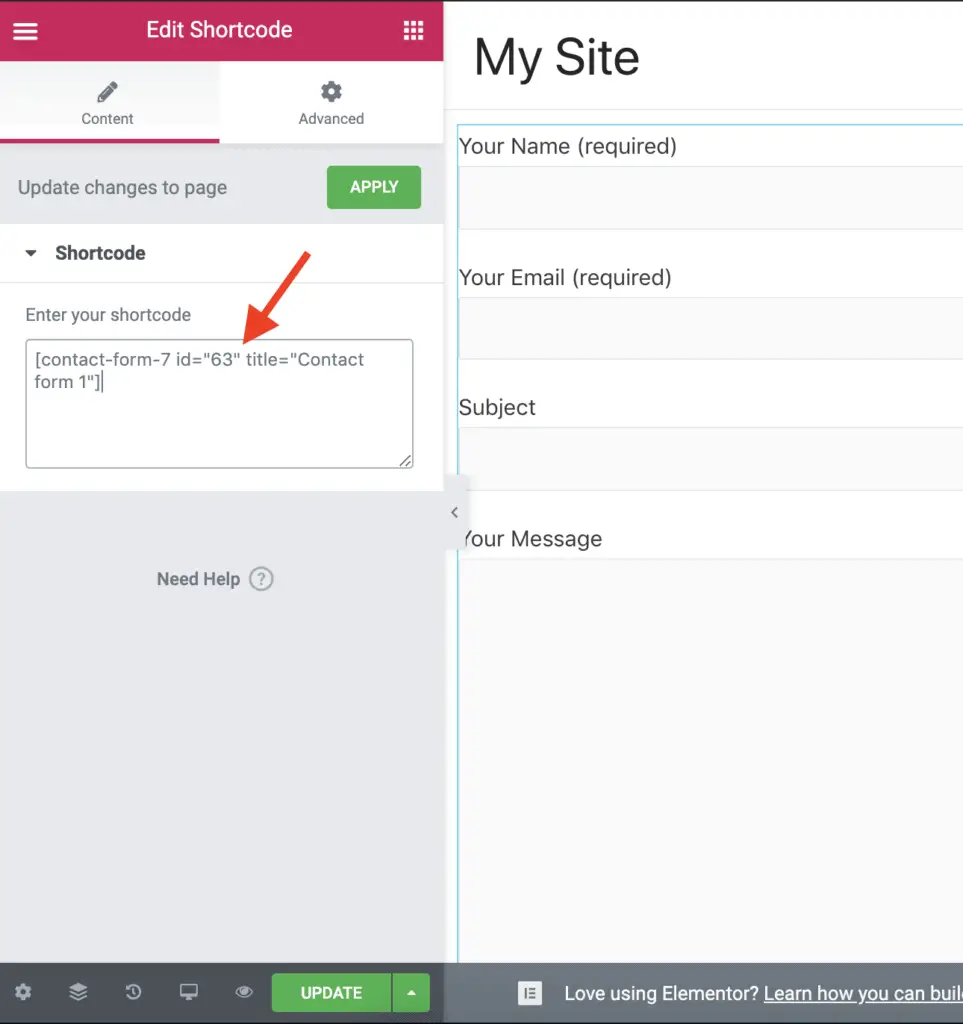
Now, paste the form shortcode in the “Enter your shortcode” field on the left-side widget settings panel.
[
](/wp-content/uploads/2020/06/add-shortcode-in-elementor.png)
The Contact Form 7 form should now display on the page. Save your changes.
And that’s it!
That is how you can add a form created with Contact Form 7 plugin to a page using Elementor.
The form will look basic. So here’s how to [style Contact Form 7](/style-contact-form-7/).
**Related Further Reading:**
- [How To Hide A Section Or Widget In Elementor? (The Easy Way)](/how-to-hide-a-section-or-widget-in-elementor/)
- [Is Elementor SEO Friendly? (Proven With Facts And Stats)](/is-elementor-seo-friendly/)
- [23 Elementor Alternatives (Some You Might Have Never Heard Of)](/elementor-alternatives/)
- [Elementor Review – Only One Thing Matters In Elementor, Nothing Else!](/elementor-review/)
- [How To Keep Accordion Closed By Default In Elementor (No Code)](/how-to-keep-accordion-closed-by-default-in-elementor/)
- [How To Link To A Section In Elementor (Without Elementor Pro)](/how-to-link-to-a-section-in-elementor/)
- [How To Add cc and bcc Fields In Contact Form 7? (Simplest Way)](/how-to-add-cc-and-bcc-fields-in-contact-form-7/)
## Video Tutorial
[Download Website Builders’ Toolbox](/toolbox/)
## What Next?
Creating and adding a Contact Form 7 form to a page using Elementor is straightforward.
You just have to use the correct widget.
If you found this tutorial helpful, then please share it with your friends who might find it useful.
 ](/wp-content/uploads/2020/06/copy-contact-form-7-form-shortcode.png)
## STEP 2: Add The Form To The Page Using Elementor
Once you have copied the shortcode of the form, edit the page with Elementor on which you want to place this form.
Once Elementor is active, scroll down and drag-and-drop the Shortcode widget on the page.
[
](/wp-content/uploads/2020/06/copy-contact-form-7-form-shortcode.png)
## STEP 2: Add The Form To The Page Using Elementor
Once you have copied the shortcode of the form, edit the page with Elementor on which you want to place this form.
Once Elementor is active, scroll down and drag-and-drop the Shortcode widget on the page.
[
 ](/wp-content/uploads/2020/06/drag-and-drop-shortcode-widget.png)
Now, paste the form shortcode in the “Enter your shortcode” field on the left-side widget settings panel.
[
](/wp-content/uploads/2020/06/drag-and-drop-shortcode-widget.png)
Now, paste the form shortcode in the “Enter your shortcode” field on the left-side widget settings panel.
[
 ](/wp-content/uploads/2020/06/add-shortcode-in-elementor.png)
The Contact Form 7 form should now display on the page. Save your changes.
And that’s it!
That is how you can add a form created with Contact Form 7 plugin to a page using Elementor.
The form will look basic. So here’s how to [style Contact Form 7](/style-contact-form-7/).
**Related Further Reading:**
- [How To Hide A Section Or Widget In Elementor? (The Easy Way)](/how-to-hide-a-section-or-widget-in-elementor/)
- [Is Elementor SEO Friendly? (Proven With Facts And Stats)](/is-elementor-seo-friendly/)
- [23 Elementor Alternatives (Some You Might Have Never Heard Of)](/elementor-alternatives/)
- [Elementor Review – Only One Thing Matters In Elementor, Nothing Else!](/elementor-review/)
- [How To Keep Accordion Closed By Default In Elementor (No Code)](/how-to-keep-accordion-closed-by-default-in-elementor/)
- [How To Link To A Section In Elementor (Without Elementor Pro)](/how-to-link-to-a-section-in-elementor/)
- [How To Add cc and bcc Fields In Contact Form 7? (Simplest Way)](/how-to-add-cc-and-bcc-fields-in-contact-form-7/)
## Video Tutorial
[Download Website Builders’ Toolbox](/toolbox/)
## What Next?
Creating and adding a Contact Form 7 form to a page using Elementor is straightforward.
You just have to use the correct widget.
If you found this tutorial helpful, then please share it with your friends who might find it useful.
](/wp-content/uploads/2020/06/add-shortcode-in-elementor.png)
The Contact Form 7 form should now display on the page. Save your changes.
And that’s it!
That is how you can add a form created with Contact Form 7 plugin to a page using Elementor.
The form will look basic. So here’s how to [style Contact Form 7](/style-contact-form-7/).
**Related Further Reading:**
- [How To Hide A Section Or Widget In Elementor? (The Easy Way)](/how-to-hide-a-section-or-widget-in-elementor/)
- [Is Elementor SEO Friendly? (Proven With Facts And Stats)](/is-elementor-seo-friendly/)
- [23 Elementor Alternatives (Some You Might Have Never Heard Of)](/elementor-alternatives/)
- [Elementor Review – Only One Thing Matters In Elementor, Nothing Else!](/elementor-review/)
- [How To Keep Accordion Closed By Default In Elementor (No Code)](/how-to-keep-accordion-closed-by-default-in-elementor/)
- [How To Link To A Section In Elementor (Without Elementor Pro)](/how-to-link-to-a-section-in-elementor/)
- [How To Add cc and bcc Fields In Contact Form 7? (Simplest Way)](/how-to-add-cc-and-bcc-fields-in-contact-form-7/)
## Video Tutorial
[Download Website Builders’ Toolbox](/toolbox/)
## What Next?
Creating and adding a Contact Form 7 form to a page using Elementor is straightforward.
You just have to use the correct widget.
If you found this tutorial helpful, then please share it with your friends who might find it useful.